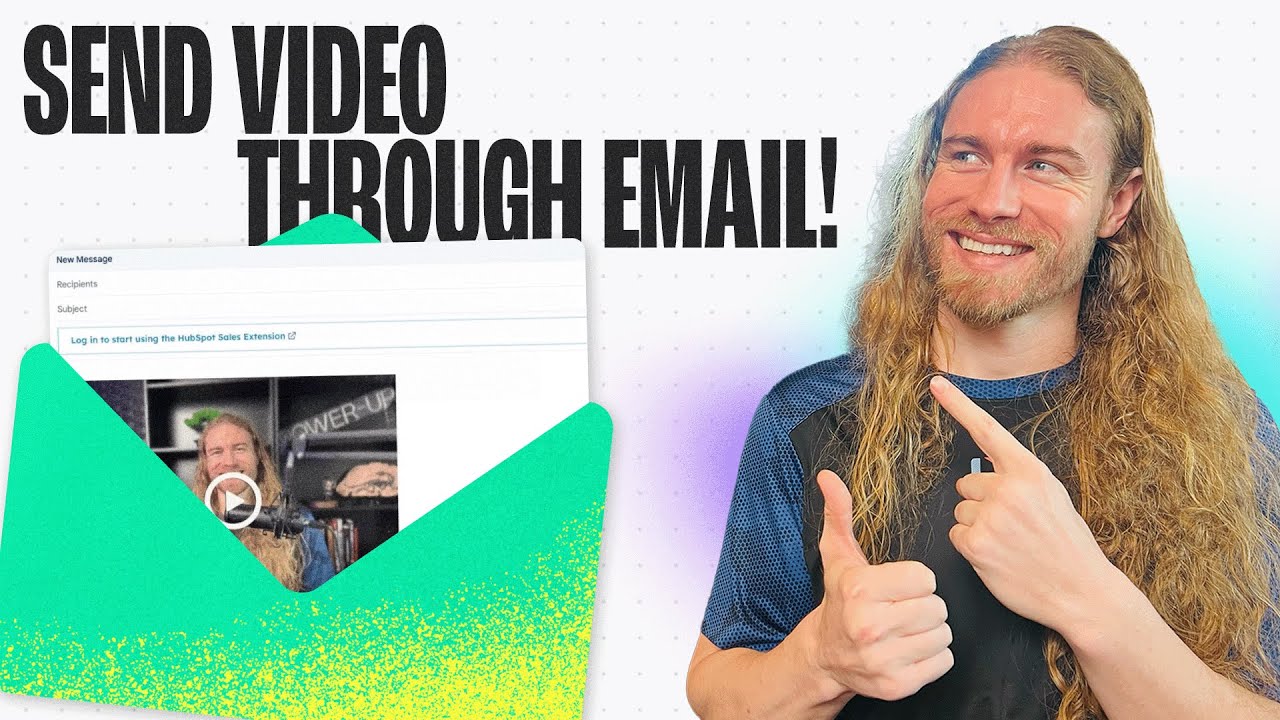
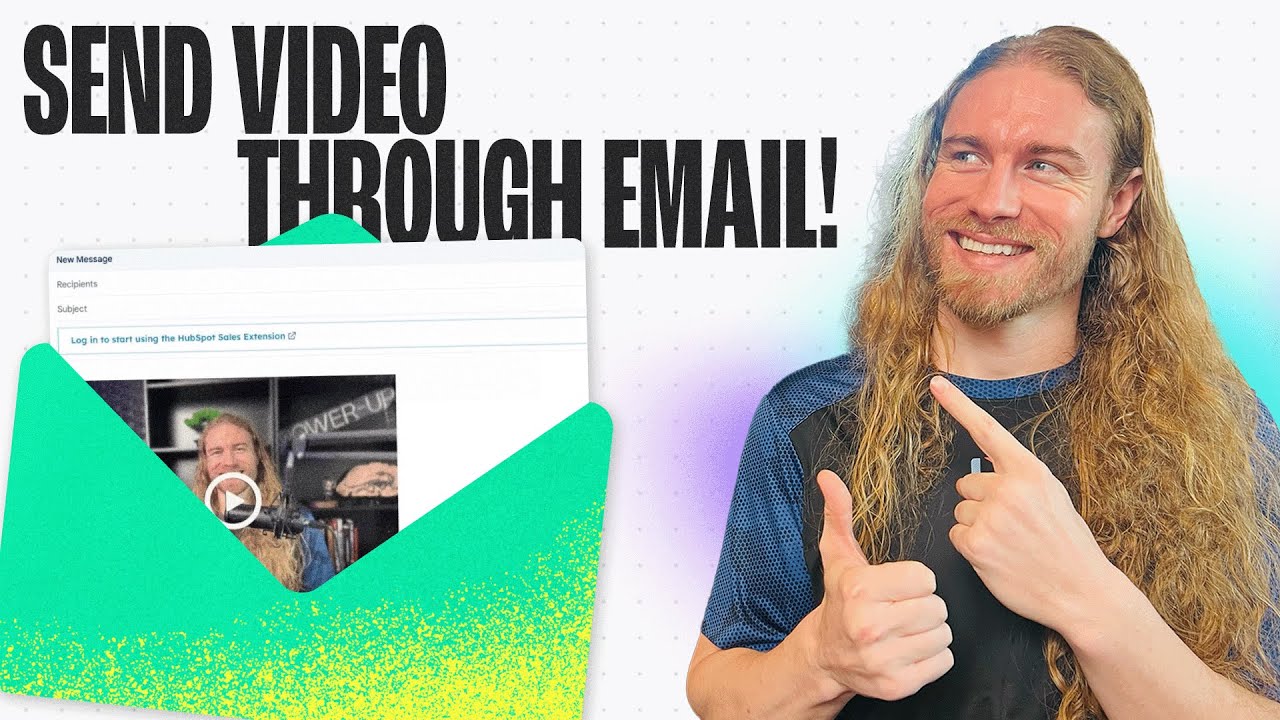
A video email is sent by copying a video from the hosting platform with the recipient's address attached, then pasting it into a compose window, where it appears as an animated preview rather than an attachment. Two shortcuts avoid the copy step: an add-in inside Gmail and Outlook 365 that inserts or records a video without leaving the compose window, and an integration in LinkedIn messaging that inserts a video into a message to a first-degree connection.
What Is a Video Email?
A video email is a message in which the primary content is a hosted video, represented in the message body by a clickable animated preview that links to a page where the video plays. It is distinguished from an attached video file in that nothing is downloaded, which keeps message size small and avoids the delivery problems attachments create.
In Dubb, sending starts from the Share and Send button on a video, where adding the recipient's email address enables activity-level tracking. Copy for Email produces the block to paste into a compose window, and add-ins for Gmail, Outlook 365, and LinkedIn insert a video directly without returning to the platform.
Table of Contents
- Three Routes, Compared
- Route One: Share and Send
- Put the Word Video First
- Writing the Rest of the Subject Line
- What Goes in the Body
- Route Two: The Gmail and Outlook Add-In
- Route Three: LinkedIn Messaging
- Why the Animated Preview Matters
- Common Mistakes and Troubleshooting
- Best Practices Worth Adopting
- Video Email Tools Compared
- Proof: Why This Actually Works
- Frequently Asked Questions
- Sending From Wherever You Already Are
Three Routes, Compared
There are three ways to send a video email or message, and the right one depends mostly on where you already are when you decide to send it.
| Route | Where You Start | What It Gives You | Best For |
|---|---|---|---|
| Share and Send | The video page in the platform | Recipient attached for activity tracking, then a block to paste anywhere | Deliberate sends where you want the tracking tied to a named person |
| Gmail or Outlook add-in | A compose window you already have open | Insert an existing video, or record a new one without leaving the email | Replying in the moment, when switching tabs would break your flow |
| LinkedIn messaging | A message thread with a first-degree connection | An animated preview in a channel that is almost entirely text | Relationships that live on LinkedIn rather than in your inbox |
All three end in the same place, which is a preview the recipient can click. What differs is how much friction sits between deciding to send and having sent.
Route One: Share and Send
The base method for any video email, and the one worth learning first because everything else is a shortcut around it.
- Open the video in the platform and click the blue Share and Send button.
- Enter the recipient's email address. This is the step that produces activity-level tracking. Skip it and you get views you cannot attribute to anyone.
- Click Copy for Email.
- Open a compose window and paste.
- Write the subject line and a line or two of body text around the preview, then send.
The email address step deserves emphasis because it is invisible in its consequences until you go looking for them. A video sent without it still works perfectly. It simply cannot tell you who watched, which removes the entire basis for an intelligent follow-up.
Put the Word Video First
Here is the single highest-return habit in video email, and it costs nothing.
Put the word "video" at the very start of your subject line, so it is the first thing the recipient sees.
The reason it works is scarcity. Think about how many subject lines you have seen containing that word. Almost none. Inboxes are full of the same phrasings, and a subject line beginning with something genuinely uncommon interrupts the scanning pattern people use to triage mail. It also sets an accurate expectation, so the recipient opens knowing there is something to watch rather than another wall of text.
A rule I hold to: if the video is the reason you are writing, the subject line should say so before it says anything else. Leading with it is better than mentioning it, and mentioning it is better than leaving it as a surprise.
Writing the Rest of the Subject Line
After the word video comes your hook, and this is where most of them quietly fail.
The hook is the reason this specific person should watch this specific video. Not what the video is about in general terms, but what is in it for them. "Video: the three things I noticed on your pricing page" works. "Video: checking in" does not, because it promises nothing.
Two practical constraints. Keep it short enough to survive mobile truncation, since a long one gets cut and your hook may be the part that disappears. And avoid the language that reads as promotional, because the same words that trip spam filters also read as generic to a human being.
The test I use is whether it would still make sense if the recipient read only that line and nothing else. If it would leave them curious rather than confused, it is doing its job.
What Goes in the Body
A short piece of text, then the video preview. That is the whole structure.
The text exists to give context, not to duplicate the video. One or two lines saying why you recorded it for them, then let the preview do the rest. If you find yourself writing four paragraphs before the video, the video is no longer the message and you should either shorten the text or skip the recording.
One thing worth carrying over from cold email practice: the video should generally be the only link in the message. Stacking a calendar link, a form, and a video together is read as a promotional pattern by mailbox providers and dilutes the single action you actually want. Anything else you want the recipient to do belongs on the page the preview opens, not in the email.
Route Two: The Gmail and Outlook Add-In
If you use Gmail or Outlook 365, there is a faster path that removes the trip back to the platform entirely.
Look for the small Dubb button in your compose window. In Gmail it sits along the bottom toolbar. In Outlook 365 it is over to the right, among the add-ins. Click it and a panel opens with two options.
Insert an existing video. Scroll your library on the right, find the one you want, and click insert. It drops into the message as a preview.
Record a new one. You can record from inside the email itself and place it directly into the message, without ever opening another tab.
That second option is the more interesting of the two, because it changes what is realistic. Recording a reply becomes a decision you make while reading the message rather than a task you schedule for later, and tasks scheduled for later are the ones that do not happen.
Route Three: LinkedIn Messaging
LinkedIn has one prerequisite: you must be a first-degree connection to message someone. Connect first, then send.
Once you are connected, open the message thread and look for the Dubb symbol in the message box. Click it, find your video in the panel on the right, click insert, and it drops into the message. When you send, the recipient sees the animated preview.
The reason this outperforms its effort is context. Almost everything on LinkedIn is text. Connection notes, pitches, follow-ups, all of it plain text competing with identical plain text. A moving preview in that environment is genuinely unusual, and unusual is what earns the click.
Worth applying some judgment about timing. A video immediately after connecting reads as a pitch that was queued before you existed as a person to them. A video after an actual exchange reads as effort. Same asset, different reception.
Why the Animated Preview Matters
The preview is not decoration. It is doing a specific job.
A plain link asks the recipient to accept an invitation to somewhere unknown. An animated preview shows them a moving image of a person, usually you, before they decide. That converts an abstract request into a concrete one, and people click concrete things more readily.
It also signals effort. A recipient can tell at a glance that you recorded something rather than pasted a template, and that impression forms before they have read a word.
One technical caveat worth knowing. Some email clients block images by default, so a proportion of recipients will see your message without the preview rendering until they allow images. That is why the line or two of body text matters: it should make sense on its own, so a recipient with images blocked still understands what you sent and why.
Common Mistakes and Troubleshooting
Sending without entering the recipient's email. The video works, the tracking does not. If your reporting shows unattributed views, this is why.
Burying the word video. Put it first in the subject. Its whole advantage is being the first uncommon thing the eye lands on.
No hook. "Video: following up" tells the recipient nothing about why this one is worth ninety seconds.
Writing four paragraphs above the preview. If the text says everything, the video is redundant. Cut the text.
Stacking links around the video. Keep the video as the single link and move everything else to the page it opens.
Messaging a second or third-degree connection on LinkedIn. You need to be a first-degree connection. Connect first.
Assuming everyone sees the preview. Some clients block images. Your body text should stand on its own.
Best Practices Worth Adopting
Attach the recipient every single time. It takes two seconds and it is the difference between sending and knowing.
Use the add-in when you are already in your inbox. Switching to another tab is where the intention to send a video quietly dies.
Record the reply while you are reading the message. The add-in exists so that recording is a decision rather than a project.
Match the channel to the relationship. If you know someone through LinkedIn, send it there rather than surfacing an email address they did not give you.
Write the subject last. What I see most often is a good video introduced by a line written before the recording, describing something more general than what was actually said.
Video Email Tools Compared
Several tools do video in email well. The useful distinction is where you are allowed to compose from.
| Tool | Where You Compose | Channels Covered | Best Fit Use Case |
|---|---|---|---|
| Dubb | Your own inbox via add-in, LinkedIn, or the platform | Gmail, Outlook 365, LinkedIn, and paste-anywhere | Sellers who send from wherever the conversation already is, and want per-recipient tracking |
| BombBomb | Its own sending platform, plus integrations | Email-first, with CRM connections | Teams that want recording, sending, and list management in one email-centric tool |
| Vidyard | Browser extension and integrations | Email and sales engagement platforms | Revenue teams routing viewing data into an existing stack |
| Loom | Copy a share link and paste it yourself | Anywhere a link can go | Fast internal sends where a plain link is sufficient and nobody follows up systematically |
For a single message to a colleague, a plain link is completely fine and anything more is overhead. The case for the rest of it appears when you are sending to people you intend to follow up with, because that is when knowing who watched stops being a nice extra and becomes the reason you sent it.
Proof: Why This Actually Works
That first point is testable by anyone in about four seconds. Search your own inbox for the word "video" in subject lines and count the results. Whatever number comes back is the size of the gap, and it is the reason a subject line beginning with that word gets noticed in a way that no amount of cleverness elsewhere achieves.
Two patterns hold across the sending we see. The first concerns the add-in: people with the Gmail or Outlook integration installed send meaningfully more video than people who copy from the platform, and the videos themselves are no better. The difference is that a tab switch is enough friction to stop a good intention, and removing it converts intentions into sends.
The second concerns attribution. Senders who attach the recipient's address consistently follow up on a smaller, better-chosen list than those who send untracked and then guess. The tracking does not create interest. It tells you where the interest already was, which is the same conclusion the follow-up data keeps producing across every channel.
Methodology note: these are directional observations drawn from aggregated, anonymized sending patterns across Dubb users, not a controlled study. No figures are attached to either pattern, and outcomes vary by audience, channel, and how well the video matches the recipient.
The conclusion is unromantic. Most of the gains in video email come from removing friction and adding two seconds of setup, rather than from anything about the recording itself.
Frequently Asked Questions
How do I send a video by email?
Open the video in the platform, click Share and Send, enter the recipient's email address so you get activity tracking, then click Copy for Email and paste it into a compose window.
Write a subject and a line or two of body text around the preview, then send. The recipient sees an animated preview they can click, rather than an attachment they have to download.
What should I put in the subject line of a video email?
Put the word "video" first, before anything else, because almost no subject lines contain it and that unfamiliarity interrupts the way people scan their inbox. It also sets an accurate expectation about what is inside.
After that comes your hook, meaning the reason this specific person should watch this specific video. Keep it short enough to survive mobile truncation, and avoid promotional-sounding language, which reads as generic to people and as spam to filters.
Can I record a video from inside Gmail?
Yes, if you have the Gmail or Outlook 365 add-in. Look for the small Dubb button in your compose window, along the bottom toolbar in Gmail or over to the right among the add-ins in Outlook 365.
Clicking it opens a panel where you can either scroll your library and insert an existing video, or record a new one from inside the email and place it straight into the message without opening another tab.
How do I send a video on LinkedIn?
You need to be a first-degree connection to message someone, so connect first. Then open the message thread, click the Dubb symbol in the message box, find your video in the panel, and click insert.
When you send, the recipient sees an animated preview. This works particularly well on LinkedIn because nearly all messaging there is plain text, so a moving preview stands out.
Why is my video not showing as a preview?
Some email clients block images by default, so the animated preview may not render until the recipient allows images.
This is why the line or two of body text matters. Write it so it makes sense on its own, and a recipient with images blocked still understands what you sent and why they should click.
Do I need to attach the recipient's email address?
The video will send and play perfectly without it. What you lose is activity-level tracking, meaning you get views you cannot attribute to any particular person.
Since knowing who watched is what makes follow-up intelligent rather than guessed, entering the address is worth the two seconds every time.
Sending From Wherever You Already Are
The mechanics take a minute to learn and pay off indefinitely. Share and Send with the recipient attached, Copy for Email, paste. Lead the subject line with the word video, follow it with a hook aimed at that person, keep the body to a line or two, and let the video be the only link.
Then remove the friction. The Dubb add-in for Gmail and Outlook 365 lets you insert or record without leaving the compose window, and the LinkedIn integration puts an animated preview into a channel where nearly everything else is text. Same video, far fewer reasons not to send it.
Install the add-in first, before anything else on this list. It is the change that converts the videos you meant to send into videos you actually sent.