The clearest way to show an AI agent what to change is to annotate a screenshot. Capture the page, mark the exact spot with an arrow, box or circle, add a short note saying what should change, and paste the image into the chat. The marks remove the guesswork that words like "the top" or "that section" leave behind, so the agent edits the right thing the first time.
I build pages with our agent most days, and the slowest part is never the building. It is the feedback. I look at a page, I know exactly what I want different, and then I have to describe it in words to something that cannot see what I am looking at.
That is the problem Dubb Capture solves, and it is a bigger one than it sounds. Below is why written feedback goes wrong, how to annotate screenshots for AI instead, which mark to use for which kind of change, and how to install the extension.
What Is Visual Feedback for AI?
Visual feedback for AI is the practice of giving an AI model instructions through an annotated image rather than through text alone. The image shows the model what you are looking at, the annotations point to the exact element, and a short written note says what should happen to it.
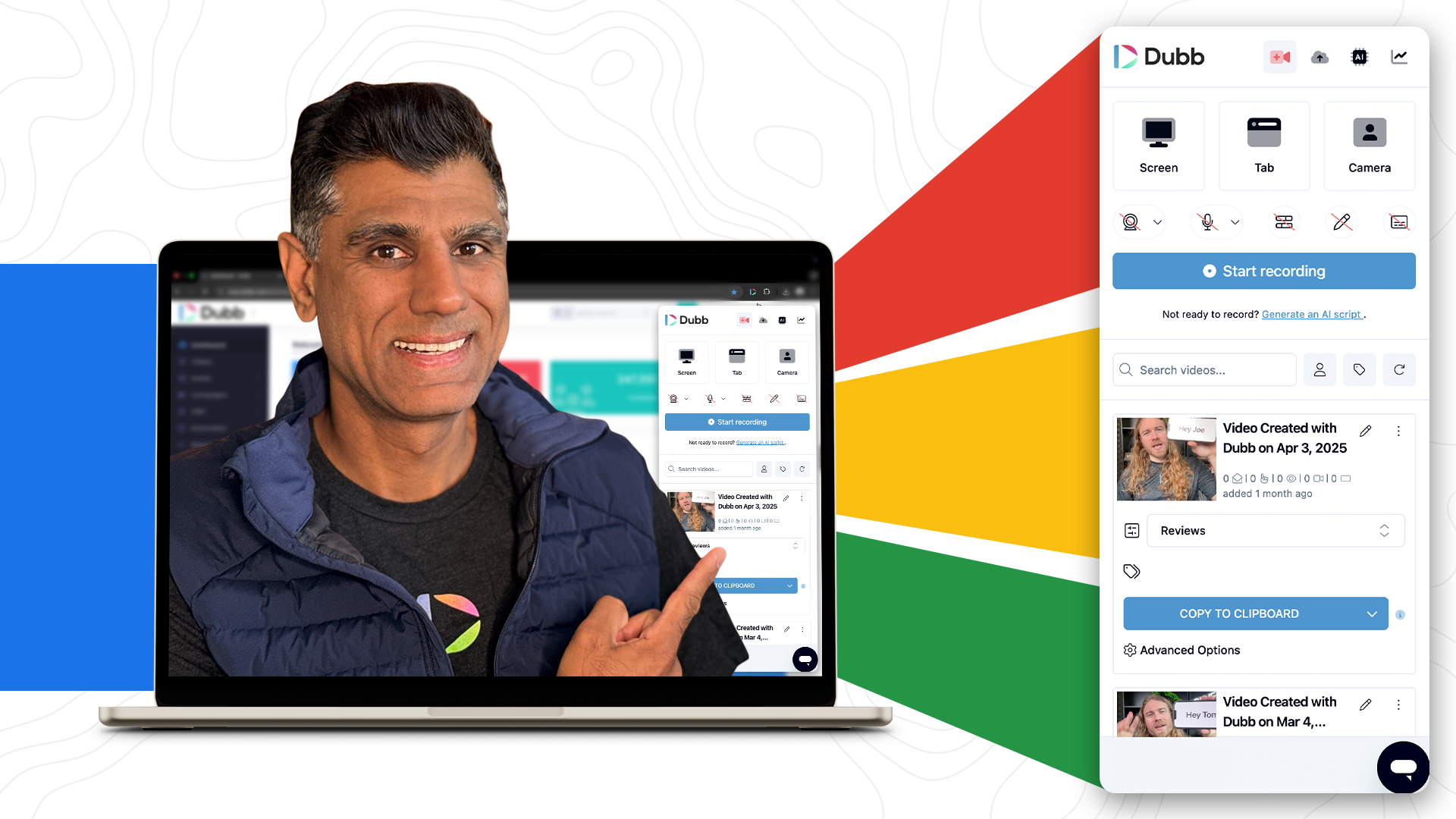
Dubb Capture is a Chrome extension built for exactly this. It captures a browser tab, lets you mark it up with arrows, shapes and text, and copies the result to your clipboard so you can paste it straight into Dubb Agent. It works the same way for a website, a landing page, a design, or a PDF or document you have open in Chrome.
What is on this page
- Why "change the text at the top" goes wrong
- What Dubb Capture does
- How to give feedback with an annotated screenshot
- Which mark to use for which instruction
- What you can use it on
- How to install and pin Dubb Capture
- Dubb Capture, Zight and Awesome Screenshot compared
- Common mistakes with screenshot feedback
- Proof: why this actually works
- Frequently asked questions
- Point at it instead of describing it
Why "Change the Text at the Top" Goes Wrong
Here is a real example. I built a landing page in Dubb and wanted to change the headline. The natural thing to type is: "Change the text at the top of this page."
Now look at the page the way the agent has to. Is "the top" the navigation bar? The small line above the headline? The headline itself? The first line of the hero section? Every one of those is a reasonable reading. The agent picks one, and if it picks wrong, you have spent a round of edits finding out.
Words are a lossy way to describe something visual. People get around this with each other by pointing. "This bit, here." Written instructions to an AI have no pointing, so we make up for it with paragraphs: "the second line of text in the large blue section below the logo, not the button." That works, eventually, and it is slow.
An annotated screenshot is pointing. One arrow replaces the paragraph.
What Dubb Capture Does
The Dubb Capture listing on the Chrome Web Store describes it in one line: capture any tab, mark it up with arrows, shapes and text, then copy it to your clipboard or save it as a PNG. That is the whole job, and it is deliberately small.
- Capture. Take a screenshot of the tab you are looking at.
- Mark up. Add arrows, underlines, boxes, circles and crosses from the simple toolbar on the left, plus text notes for context.
- Copy. One button copies the annotated image to your clipboard.
- Paste. Go to Dubb Agent and paste with Ctrl+V on a PC or Command+V on a Mac. The image lands in the chat, and the agent can see what you marked.
The whole loop takes seconds, which matters. Feedback that takes seconds to give gets given. Feedback that takes a paragraph gets put off until later.
How to Give Feedback With an Annotated Screenshot
- Open the thing you want changed in Chrome. The page, the design, the PDF.
- Capture the tab with the extension. Include enough of the page around the element that the agent can tell where it sits.
- Mark each change. One mark per change: an arrow to point, a box to select an area, an X for something that should go.
- Add a short note beside each mark. "Make this shorter." "Remove." "Use our brand blue." The mark says where, the note says what.
- Copy to clipboard and paste into Dubb Agent. Add one sentence of context if it helps, such as "Changes to the landing page we built yesterday."
- Check the result and repeat. If one change came out wrong, capture the new version and mark only that one.
You do not need to write a paragraph. When you annotate screenshots for AI this way, the image carries the location and the notes carry the intent.
Which Mark to Use for Which Instruction
A consistent set of marks makes your feedback faster to give and easier for the agent to read. This is the set I use.
| Mark | Use it for | Example note beside it |
|---|---|---|
| Arrow | Pointing at one specific element | "Change this headline to: Book Your Free Consultation" |
| Box | Selecting a whole section or block | "Move this whole section above the testimonials" |
| Circle | Something small that needs attention | "This icon is the wrong color, use our brand blue" |
| Underline | Specific words within a line of text | "Replace these words with: in under five minutes" |
| X | Removing something | "Remove this button" |
| Text note | Saying what the change is | Always next to a mark, never on its own. The mark says where, the note says what. |
Number your marks if there are more than three. "1, 2, 3" on the image lets you and the agent refer back to them later: "Number 2 is perfect, number 3 still needs work."
What You Can Use It On
Anything you can open in a Chrome tab and want an agent to change:
- Websites and landing pages. The most common use. If you built a page with the agent, a website or a video landing page, this is the fastest way to revise it.
- Design elements. A banner, a thumbnail, a social graphic. Circle the part that is wrong.
- PDFs and documents. Open the PDF in Chrome, capture the page, mark what to change in the next draft.
- Someone else's page you want to learn from. Capture an example you like and mark what you want to borrow: "this layout, our colors."
How to Install and Pin Dubb Capture
- Go to dubb.com/capture. It forwards you to the official Dubb Capture listing on the Chrome Web Store, published by Dubb.
- Remove any beta version first. If you installed an early beta, click the puzzle piece icon in Chrome's toolbar, find the beta version, and click Remove. This clears out older versions so they do not conflict.
- Click Add to Chrome. It installs in a second and appears on the right of your toolbar.
- Pin it. Click the puzzle piece icon again and click the pin next to the extension. Now it sits in your toolbar, one click away, instead of hidden in the extensions menu.
Pinning sounds like a small step. It is the difference between a tool you use every day and one you forget you installed.
Dubb Capture, Zight and Awesome Screenshot Compared
Screenshot annotation is not new, and there are good tools for it. The difference is mostly what each one is built to hand the screenshot to.
| Tool | What it does | Best for | Less suited when |
|---|---|---|---|
| Dubb Capture | Captures a tab, marks it up with arrows, shapes and text, copies to clipboard or saves a PNG. | Fast feedback to an AI agent, especially Dubb Agent. Deliberately minimal. | You need full-page scrolling capture, blur, or shareable links for a team. |
| Zight | Screen recording, full-page screenshots, annotation, and shareable links. | Teams sharing visual feedback with each other across support, product and engineering. | All you want is a quick marked-up image for an agent, without another account. |
| Awesome Screenshot | Visible-area and full-page screenshots with annotation and blur, plus screen recording. | Long pages and screenshots that need sensitive details hidden. | You want the shortest path from screenshot to your agent's chat box. |
Your operating system also has a free option. Windows Snipping Tool and the macOS screenshot markup both let you draw on a capture. Any of these works with the method in this post. What matters is the habit of pointing instead of describing, not the specific tool.
Common Mistakes With Screenshot Feedback
Cropping too tight. A screenshot of one button tells the agent nothing about where that button is. Include enough of the surrounding page that the element can be located. Anthropic's documentation on image understanding also notes that very small images, under about 200 pixels, are more likely to be misread.
Marks with no notes. An arrow says where, not what. An arrow pointing at a headline could mean change it, remove it, make it bigger or fix a typo. Always add the note.
Ten changes in one image. Past four or five marks, the image gets crowded and changes start to interfere with each other. Split large revisions into two or three screenshots.
Relying on the image for exact wording. If you want specific new text, type it in the note or in the chat. Do not expect the agent to read handwriting-style annotations perfectly, and do not leave the new wording for it to guess.
Capturing private information. Pages often show things you did not notice: customer names, email addresses, account numbers in a sidebar. Whatever is in the screenshot goes to the agent. Crop it out, or capture a version of the page without it.
Not pinning the extension. If it takes three clicks to find, you will go back to typing paragraphs.
Proof: Why This Actually Works
Based on anonymized usage patterns across Dubb Agent users who build and revise pages in the agent, mostly small business owners, agents and marketers, observed over the past several months, two patterns are consistent.
The first is fewer rounds of revision. Text-only change requests tend to need a follow-up clarifying which element was meant. Requests with a marked-up screenshot more often land on the right element first time, because the location question has already been answered.
The second is shorter requests. People who paste an annotated image write a sentence or two of context rather than a paragraph of directions, and they give feedback more often as a result. When feedback is cheap to give, pages get revised more and end up better.
Frequently Asked Questions
Can I paste a screenshot into an AI agent?
Yes. Most modern AI agents and assistants accept images, and you can paste one straight from your clipboard with Ctrl+V on a PC or Command+V on a Mac. With Dubb Capture you take the screenshot, mark it up, click copy to clipboard, and paste it into Dubb Agent, and the agent can see what you marked.
How do I tell AI exactly what to change on my website?
Take a screenshot of the page, mark the exact element with an arrow, box or circle, and write a short note beside each mark saying what should change. Then paste the image into your agent. The mark removes the ambiguity in words like "the top" or "that section", and the note tells the agent what to do there.
Where do I download Dubb Capture?
Go to dubb.com/capture, which forwards you to the official Dubb Capture listing on the Chrome Web Store. Click Add to Chrome to install it. Then click the puzzle piece icon in your toolbar and pin Dubb Capture, so it is always one click away.
Does Dubb Capture work outside Chrome?
Dubb Capture is a Chrome extension, and it captures what is open in a Chrome tab. That covers websites, landing pages, web apps, and PDFs or documents opened in the browser. For something open in a desktop app, open it in Chrome if you can, or use your operating system's built-in screenshot tool and paste that into your agent instead.
How do I remove the beta version of a Chrome extension?
Click the puzzle piece icon in Chrome's toolbar to see your extensions, find the beta version, open its menu, and click Remove. Do this before installing the official version, so the two do not conflict and you are not left using an older build by mistake.
Do annotations really help AI understand a screenshot?
Yes, for the same reason pointing helps people. A model can see the whole page, but it cannot know which part you mean, and AI vision is approximate on exact positions. An arrow or box removes that uncertainty, and a short note beside it states the change. Together they do the job a long written description would do, in less time.
Point at It Instead of Describing It
The shift here is small and it changes how often you give feedback at all. When telling the agent what to fix means writing a careful paragraph, you put it off. When it means an arrow, three words and a paste, you just do it, and your pages get better because you revise them more.
You can grab Dubb Capture at dubb.com/capture. Install it, pin it, and next time you look at something you built with Dubb Agent and think "that is not quite right", capture it, circle it, and paste it in. If you are already using it, tell us what you think in the comments. A lot of what we build comes from exactly that feedback.