How Do You Send Video in Mailchimp?
Mailchimp does not support native HTML5 video embeds in email campaigns. The standard workaround is to host your video externally, create a clickable thumbnail or animated GIF inside the Mailchimp editor, and link that image directly to your video URL. The result looks like an embedded video to recipients but routes them to a hosted playback page where autoplay, audio, and full engagement tracking all work reliably.What Is Video Email Marketing?
Video email marketing is a distribution strategy in which marketers include video content or links that lead to video content inside email campaigns to increase engagement, convey complex messages, and drive click-throughs. Because most major email clients, including Gmail and Outlook, do not render HTML5<video> tags, the standard implementation uses a static or animated image as a stand-in. That image is hyperlinked to an externally hosted video page. When a recipient clicks the image, they land on a page where the video plays natively.
Tools like Dubb are built specifically for this workflow. Dubb provides a Chrome Extension that lets users record, select, or upload a video, generate a shareable video URL, and insert a thumbnail link directly into email platforms like Mailchimp.
Table of Contents
- What Is Video Email Marketing?
- Why You Can't Directly Embed Video in Mailchimp
- How to Send Video in Mailchimp: Step-by-Step
- Choosing the Right Thumbnail: Static Image vs. Animated GIF
- Video-in-Email Tool Comparison
- Best Practices for Video in Email Campaigns
- Common Mistakes and How to Fix Them
- Proof: Why This Actually Works
- FAQ
- Sources and Further Reading
Why You Can't Directly Embed Video in Mailchimp
Before walking through the steps, it helps to understand the underlying constraint. The HTML5<video> element is not reliably rendered across email clients. Outlook still one of the most-used enterprise email clients does not support the <video> tag at all. Gmail strips unsupported HTML. Apple Mail is a partial exception but represents a minority of all opens in B2B sending.
Mailchimp's own editor reflects this reality: there is no native video block. The platform officially recommends the thumbnail-and-link approach as its supported method for including video content.
This is not a Mailchimp-specific limitation. It is an industry-wide constraint driven by email client rendering environments. The thumbnail workaround is the current standard for reliably delivering video content across all inbox types.
How to Send Video in Mailchimp: Step-by-Step
This process uses Dubb's free Chrome Extension to record or upload a video, generate a hosted URL, and link that URL to an image inside a Mailchimp campaign.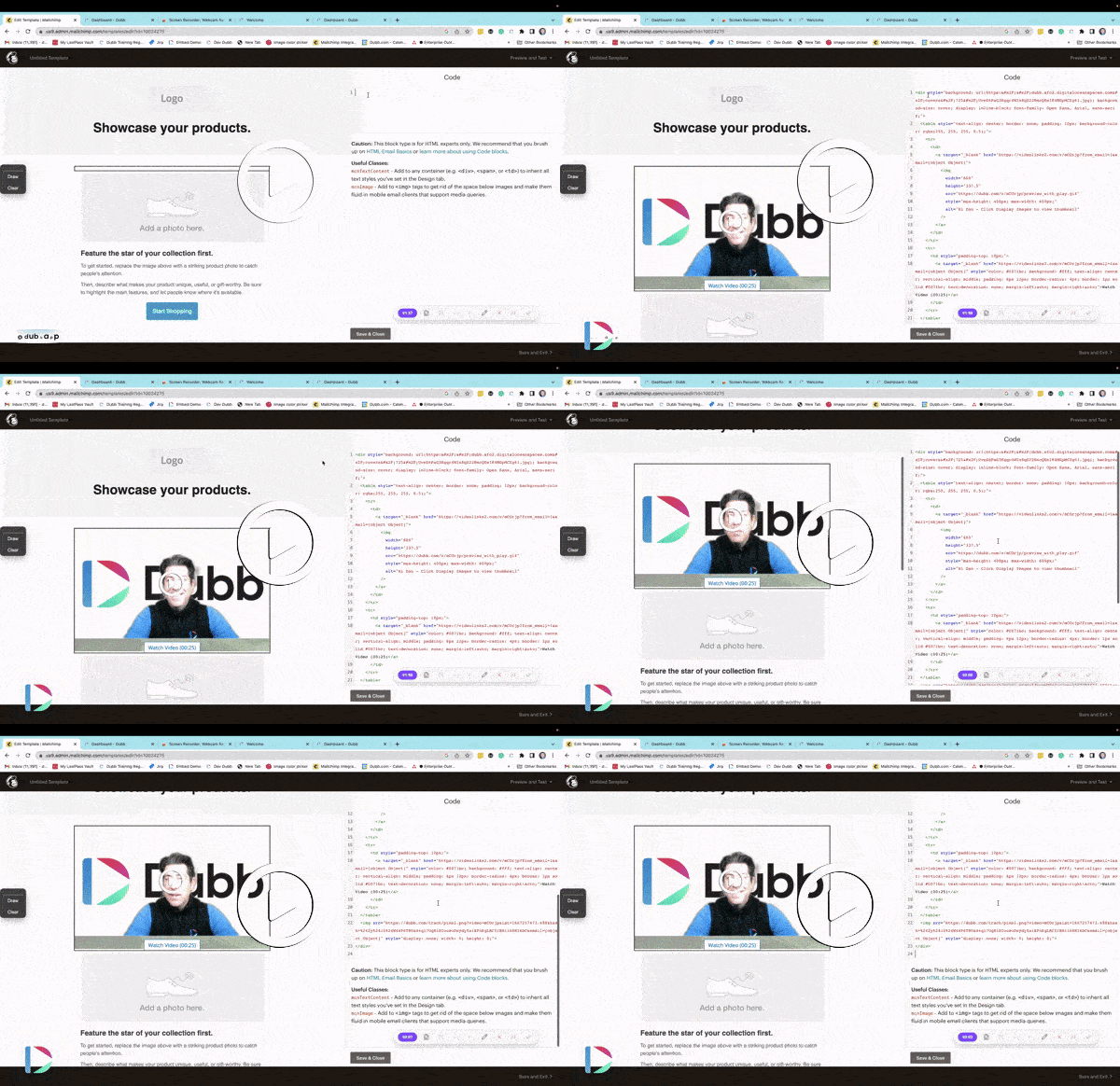
Step 1. Install the Dubb Chrome Extension
Install the free Dubb Chrome Extension. This adds a Dubb icon to your browser toolbar and integrates with Gmail, Outlook Web, and other web-based tools including Mailchimp.Step 2. Create a Dubb Account
Sign up for a Dubb account. A free tier is available for initial use.Step 3. Open Mailchimp and Start a Campaign
Log in to your Mailchimp account, navigate to Campaigns, and select "Create Campaign." Choose an email campaign and open the drag-and-drop editor.Step 4. Record, Select, or Upload Your Video via Dubb
In the Mailchimp editor tab, click the Dubb icon in your browser toolbar. You can record a new video directly, choose an existing video from your Dubb library, or upload a new file. Dubb hosts the video and generates a shareable page URL.Step 5. Copy the Dubb Video URL
Once the video is ready, copy the Dubb video page URL to your clipboard.Step 6. Add an Image Block and Link It to the Video URL
In the Mailchimp editor, drag an Image block into your email template. Upload a thumbnail image or an animated GIF that represents your video (see the next section for guidance on choosing between these). Select the image block, then use the "Link" field to paste your Dubb video URL.Step 7. Add a Play-Button Overlay (Optional but Recommended)
For static thumbnails, adding a semi-transparent play button icon on top of the image makes the interactive intent immediately clear to recipients. This can be done in any image editor before uploading the thumbnail to Mailchimp.Step 8. Test Before Sending
Send yourself a test email and verify the thumbnail renders correctly and the link opens the Dubb video page. Check rendering in at least two email clients before deploying to your full list.Choosing the Right Thumbnail: Static Image vs. Animated GIF
Both formats work with this workflow. The choice depends on your audience, brand voice, and the nature of the video.| Format | Best For | Pros | Cons |
|---|---|---|---|
| Static PNG/JPG thumbnail | Professional B2B campaigns, formal announcements | Fast load time, consistent across all clients, easy to produce | Less visually dynamic; requires clear CTA text or play-button overlay |
| Animated GIF | Product demos, event promotions, consumer-facing campaigns | Higher perceived engagement; shows product in motion; eye-catching | Larger file size can slow load; Outlook 2013–2019 shows only the first frame |
| Cinemagraph | High-end brand storytelling | Premium feel; subtle motion draws attention without distraction | Requires design skill to produce; same Outlook first-frame limitation applies |
Video-in-Email Tool Comparison
Several platforms support the thumbnail-to-hosted-video workflow. The tools below each integrate with Mailchimp or similar ESPs and represent the main options in this category.| Tool | Primary Use Case | Mailchimp Integration | Recording Capability | Official Site |
|---|---|---|---|---|
| Dubb | Sales and marketing video workflows; record, host, and link video from Chrome | Via Chrome Extension; manual URL insertion into Mailchimp image blocks | Yes - screen, webcam, or upload via Chrome Extension | dubb.com |
| Loom | Async video messaging; quick screen and webcam recordings | Manual URL insertion; Loom generates a shareable link and auto-thumbnail | Yes - screen, webcam, or both | loom.com |
| Vidyard | B2B video for sales outreach and marketing; deep CRM integrations | Via Vidyard's native Mailchimp integration (available in paid plans) | Yes - screen, webcam, or upload | vidyard.com |
| BombBomb | Video email specifically; designed for real estate, financial services, and relationship-based selling | Direct Mailchimp integration; generates embed-ready thumbnails automatically | Yes - webcam-focused | bombbomb.com |
Best Practices for Video in Email Campaigns
Keep subject lines video-forward. Including the word "video" in an email subject line is consistently associated with higher open rates across multiple email benchmarking studies. Campaign Monitor's research and similar industry reports have observed this pattern, though the magnitude varies by list and industry. Match thumbnail to video content. Use a frame from the actual video not a stock image as the thumbnail. Recipients who feel misled by a thumbnail that doesn't match the content are less likely to engage with future emails. Put the video link high in the email. Many recipients skim or read only the top portion of a campaign. A video placed below three paragraphs of text will see significantly fewer clicks than one placed in the first content block. Add alt text to the image block. In email clients where images are blocked by default, a recipient with images turned off will see nothing if alt text is missing. Write alt text like"Watch: [Topic of Video] - click to view" to preserve the call-to-action even in image-blocked environments.
Test in multiple clients before sending. At minimum, check Gmail (desktop and mobile), Outlook desktop, and Apple Mail. Tools like Litmus or Email on Acid provide automated cross-client testing.
One discipline worth building early: always review the GIF's first frame in isolation before uploading to Mailchimp. It is easy to compose an animated thumbnail where the meaningful moment appears mid-sequence and Outlook will show only that static first frame to a large portion of your enterprise audience.
Common Mistakes and How to Fix Them
Linking the image to the video file instead of the hosted video page. A.mp4 URL will not play in a browser the way a hosted landing page will. Always link to a Dubb page URL (or equivalent hosted page), not the raw file.
Using a GIF over 1MB without compression. Large GIFs increase email load time and can cause some clients to drop the image entirely. Mailchimp's image guidelines recommend keeping all images under 1MB. Use tools like ezgif.com or Gifsicle to compress animated GIFs before uploading.
Forgetting the play button overlay. Without a visual cue that the image is clickable, many recipients will not know the thumbnail leads to a video. A simple play button icon increases perceived affordance and click-through rates.
Not tracking clicks separately. Mailchimp tracks link clicks automatically, but if you have multiple links in a campaign that lead to video, name them distinctively. Review click map data after each send to understand which video placement is driving the most engagement.
Using a low-resolution thumbnail. Mailchimp scales images to fit the column width of your template. Use a thumbnail of at least 600px wide to avoid pixelation on retina displays.