How Do I Embed a Video on My Website or Landing Page?
To embed a video on a website or landing page, copy a platform-generated embed code and paste it into an HTML or code block area in your site builder. The embedded player then renders directly on the page, using the settings you selected (such as autoplay, controls, and mobile display). Most tools provide multiple embed styles so you can choose between an inline player and a floating widget-style player.
What is embedding a video on a website?
Embedding a video on a website is a web publishing method that places a video player inside a page by inserting platform-provided HTML code into the page’s layout. The player loads the hosted video in place, so viewers can watch without leaving the page.
In Dubb, this workflow is supported through an Embed tab that provides two embedding options (a standard embed and a widget-style embed) and includes settings like autoplay, player controls, mobile display, and a call-to-action shown after the video finishes.
Table of Contents
How video embedding works in practice
At a technical level, most platforms give you an embed snippet (commonly an iframe or a script-based embed) that you place into your site’s HTML. Your page then loads a player at runtime, pulling the video from the hosting provider.
Operationally, the workflow is usually:
- Choose an embed style (inline vs floating widget, responsive vs fixed).
- Select playback behavior (autoplay on or off, controls on or off, mobile visibility).
- Copy the embed code.
- Paste it into an HTML code block inside your site builder.
- Publish or save, then validate the live page behavior on desktop and mobile.
How to embed a video using Dubb’s Embed tab
Dubb’s embed workflow is designed around two embed styles and a small set of toggles you set before copying the code.
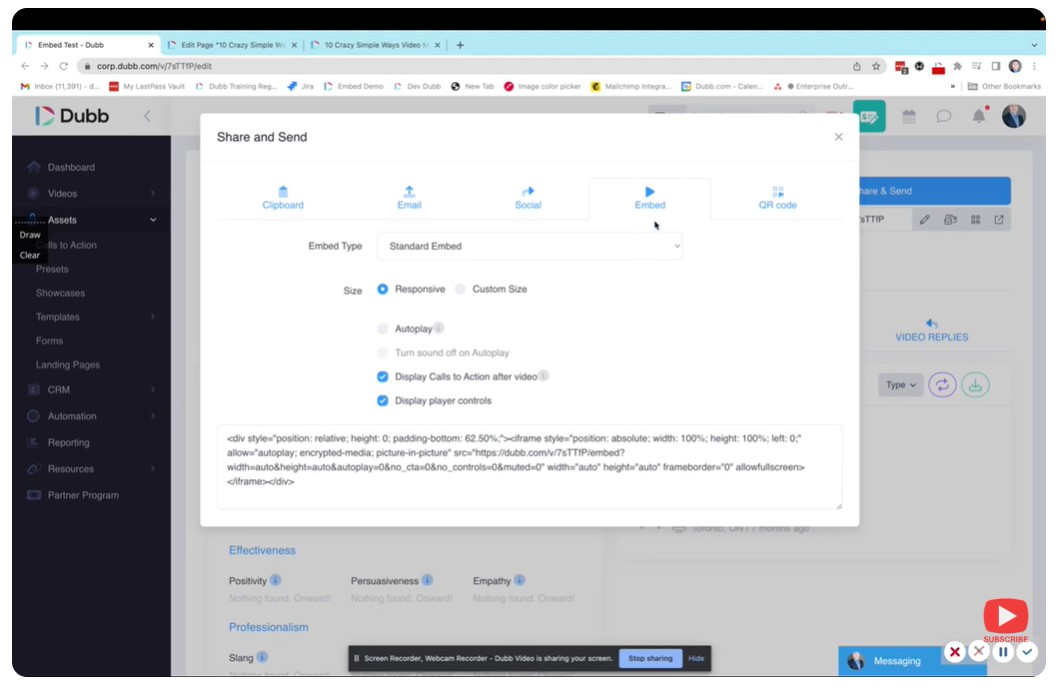
Step-by-step
- Open the video you want to publish and go to the Embed tab.
- Choose one of the two embed options:
- Standard embed (stays positioned in the page as you scroll)
- Widget embed (follows the viewer as they scroll)
- Choose your settings:
- Autoplay on or off
- Whether a call-to-action appears after the video finishes
- Whether player controls display
- Whether the embed displays on mobile
- Copy the embed code.
- In your website or landing page builder, add an HTML / code block and paste the code.
- Save or publish changes, then confirm the embedded player renders as expected.
A support-side shorthand for many builders is: drag in a custom code block and paste the embed code into it.
Both approaches place a playable video on the page. The difference is how the player behaves while a visitor scrolls.
Standard embed (inline player)
A standard embed sits in the page layout. As a viewer scrolls down, the player scrolls away with the rest of the content.
Use standard embed when:
- The video is part of a narrative section (hero, product walkthrough, pricing explainer).
- You want the page layout to remain predictable and uncluttered.
- You want the video to be one element among other conversion content.
Widget embed (scroll-following player)
A widget embed acts like a floating player. As the viewer scrolls, the player follows them, keeping video access persistent.
Use widget embed when:
- The page is long and you want the video accessible throughout scrolling.
- You are using the video as a persistent guide while the visitor reads.
- You want to keep attention anchored on the video while still allowing the visitor to browse.
Embedding options to set before copying the code
Dubb’s Embed tab includes a few toggles that affect how the embedded player behaves after it is pasted into your site.
Autoplay
Autoplay can reduce friction for viewers, but it is not always guaranteed across browsers and environments. Some platforms note that autoplay behavior may be limited by browser policies and site restrictions.
Practical implication: even if autoplay is enabled, validate in the browsers and page environments that matter to your audience (desktop Chrome, iOS Safari, in-app browsers).
Call-to-action after the video ends
Dubb supports a call-to-action shown on top of the video after playback finishes. One important constraint: only link-based website link type CTAs can appear on top of the video at the end.
If a CTA is expected but not showing, confirm:
- The CTA type is a website link (not another CTA type).
- The video reaches the end state (the overlay appears after completion).
Player controls
Controls affect basic usability, especially for viewers who want to pause, scrub, or rewatch.
If controls are disabled, validate that viewers can still start playback and interact as expected. An internal QA note calls out a failure mode: when Display Player Controls is not selected, the embedded player can lose the play button and become unplayable.
Display on mobile
Mobile display toggles are valuable when your page layout needs different behavior on smaller screens. The key is to decide intentionally:
- Show the embed on mobile if mobile visitors are a meaningful segment and the player fits the layout.
- Hide or change behavior if the embed overlaps critical content or complicates navigation.
Example: embedding into a landing page builder
Most builders follow the same pattern: you add an element that accepts raw HTML, then paste the embed code.
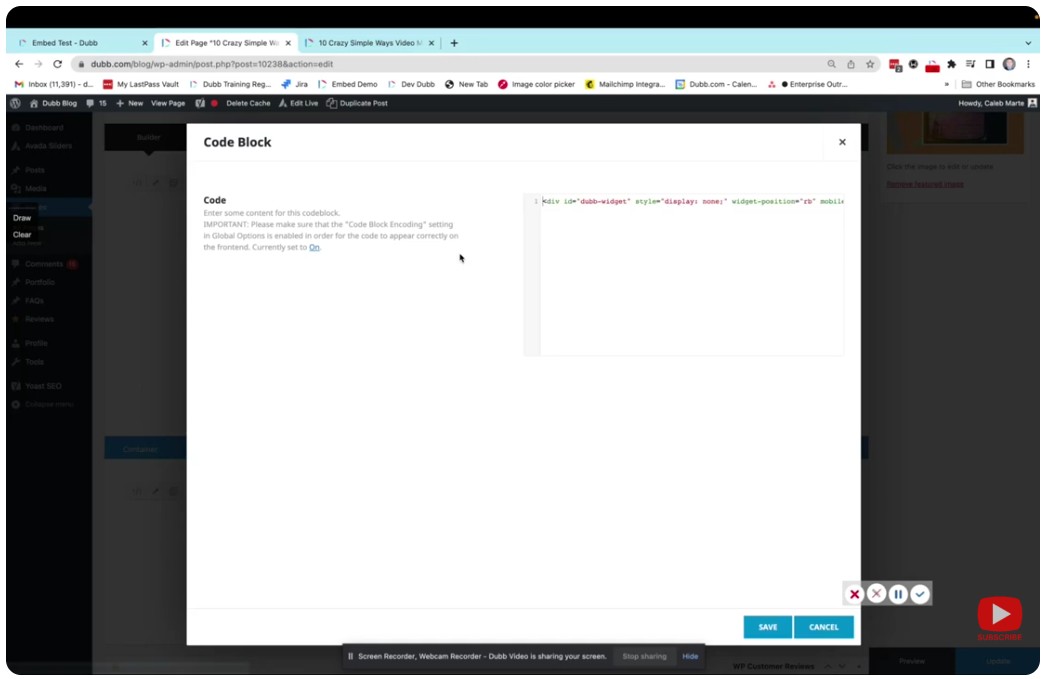
Generic code block template
Paste your embed snippet where indicated:
<!-- 1) Add an HTML/Code Block in your site builder -->
<!-- 2) Paste your video embed code below -->

<div class="video-embed">
  <!-- PASTE YOUR EMBED CODE HERE -->
</div>
Where to paste it (common builder naming)
- HTML element
- Embed element
- Custom code block
- Code block
- Custom HTML section
After publishing:
- Test the page on desktop and mobile.
- Scroll the page to confirm the embed style behaves as intended (inline stays in layout; widget follows scroll).
Common mistakes and troubleshooting
Pasting into the wrong block type
If you paste embed code into a rich text block, many builders will sanitize it or render it as plain text. Always use an HTML or code block.
Autoplay is enabled but nothing plays
Autoplay is commonly impacted by browser policies and environment restrictions, and some platforms explicitly warn it may not work on all sites or browsers.
A simple rule I use is: treat autoplay as best effort, then design the first frame so clicking play still makes sense. This avoids relying on autoplay for the core experience.
Controls are missing and viewers cannot play or scrub
If Display controls is turned off, confirm the player still has a visible play interaction. There is a known failure mode where disabling controls can remove the play button and prevent playback.
The end-of-video CTA does not appear
Check two things:
- The video must reach its end state for the overlay to show.
- The CTA must be a website link type (link-based CTA), otherwise it will not appear on top of the video at the end.
Widget embed overlaps content
Widget-style embeds can interfere with chat widgets, sticky headers, and mobile nav. If overlap happens:
- Consider switching to a standard embed on pages with many sticky UI elements.
- Consider disabling the widget embed on mobile if the layout becomes cramped.
Best practices for B2B landing pages
Match embed style to page length
- Short page or focused hero: standard embed is usually cleaner.
- Long-form page: widget embed can keep the video accessible while visitors scroll.
Make the end state intentional
If an end-of-video CTA is part of the workflow, make sure:
- The CTA is link-based (website link type).
- The destination matches the page’s primary conversion goal (demo request, signup, or a targeted next page).
A practical rule of thumb is: use one primary CTA at the end, not multiple competing asks. It reduces decision friction and makes performance easier to evaluate.
Validate mobile behavior early
Mobile layouts often break when multiple sticky elements stack. If the page has sticky navigation, chat widgets, or other floating UI:
- Test the embed on mobile before you commit to widget behavior.
- Consider mobile-specific visibility settings if the player competes for space.
Dubb is one option for embedding hosted videos on web pages. Two other common alternatives are general video hosts and marketing video platforms that provide their own embed codes and player parameters:
Comparison table (workflow and decision criteria)
| Tool |
How you embed |
Common controls |
Best fit use case |
Key considerations |
| Dubb |
Copy embed code from an Embed tab, paste into an HTML/code block |
Autoplay toggle, controls toggle, mobile display toggle, end-of-video CTA overlay (link-based) |
Website and landing pages where you want a choice between inline and scroll-following widget behavior |
End CTA overlay requires a website link type CTA; disabling controls can remove play interaction if not validated |
| YouTube |
Iframe embed URL with player parameters |
Autoplay and controls are supported via parameters |
Public-facing content where broad compatibility matters |
Player behavior is parameter-driven; environment policies can still affect autoplay |
| Vimeo |
Copy HTML embed code from the Share modal and paste into HTML editor |
Playback customization options include autoplay and mute in embed settings |
Brand-forward embedded playback where you want a customizable player experience |
Embed behavior depends on Vimeo settings and plan; validate responsive sizing and playback rules |
| Wistia |
Select an embed style (inline or popover) and copy code from the embed modal |
Options vary by embed style; inline is the common place player on page option |
Marketing teams who want a marketing video platform workflow and embed styles |
Choose embed style based on desired viewing experience; confirm how metadata and indexing settings are handled |
Proof: Why This Actually Works
Based on an internal QA checklist run by the Dubb team that covered multiple embedded-player checks across embed styles and settings, both the widget embed and standard embed rendered correctly in testing, and the most important failure mode to guard against was configuration-related rather than broken embed code.
What this means in practice:
- The embed styles themselves are not typically the risk.
- The risk comes from toggles that affect playback usability, especially turning off player controls.
- In that QA pass, disabling player controls could remove the play button and prevent the video from being played at all, which is a high-impact issue because it looks like the embed is broken when it is actually a settings problem.
Methodology note: This proof is based on internal QA observations documented by the Dubb team while validating embedded playback behavior and settings interactions in a test environment, rather than on individual customer-identifiable data.
FAQ
How do I embed a video into an HTML page?
Copy the embed code from your video platform, then paste it into an HTML or code block on the page. After saving or publishing, reload the live page and confirm the player renders and plays normally.
If the embed shows as text, the code is likely in a rich text block instead of an HTML block.
What is the difference between a standard embed and a widget embed?
A standard embed sits inside the page layout, so it scrolls away with the content. A widget embed follows the visitor as they scroll, keeping the player visible on the screen.
Standard is usually better for clean layouts; widget is better for long pages where you want persistent access to the video.
Why is my embedded video not autoplaying?
Autoplay can be limited by browser policies and by the environment where the page is loaded. Even when autoplay is enabled in the embed settings, some browsers or sites may prevent it from starting automatically.
The safest approach is to validate autoplay in your primary target browsers and ensure the player still works well when a viewer needs to click play.
Why are the controls missing on my embedded video?
Controls are often controlled by a setting in the embed options. If you disable player controls, you may remove scrubbing and pause controls, and in some cases you can remove the play button entirely.
An internal QA note highlights that turning off Display Player Controls can make the embedded video unplayable due to a missing play button.
How do I add a call to action after the embedded video ends?
Enable the option that displays a call to action after the video finishes. In Dubb’s embed workflow, the CTA appears on top of the video at the end.
To ensure it works, the CTA must be a link-based website link type CTA, otherwise it will not appear on top of the video at completion.
Will the embedded video show on mobile?
Mobile visibility depends on your embed settings and your page layout. If your embed has a display on mobile option, decide based on how the player fits on small screens.
Always test on an actual phone, especially if your page includes other sticky elements that could overlap a floating widget embed.
Simplifying your video embed workflow with a consistent end CTA
Most teams struggle with video embeds for three reasons: picking the wrong embed style for the page length, pasting code into the wrong place in the builder, and misconfiguring playback settings so the video is harder to use than expected.
The Dubb workflow described here reduces that complexity by centralizing the steps in one place: choose standard vs widget, set autoplay, controls, and mobile display, optionally show a post-video CTA, then copy and paste the embed code into an HTML block in your website or landing page builder.
If the goal is to implement the exact embed workflow covered above, start by using Dubb’s Embed tab to generate the code for your preferred embed style, then publish it through your site builder and validate desktop and mobile behavior.