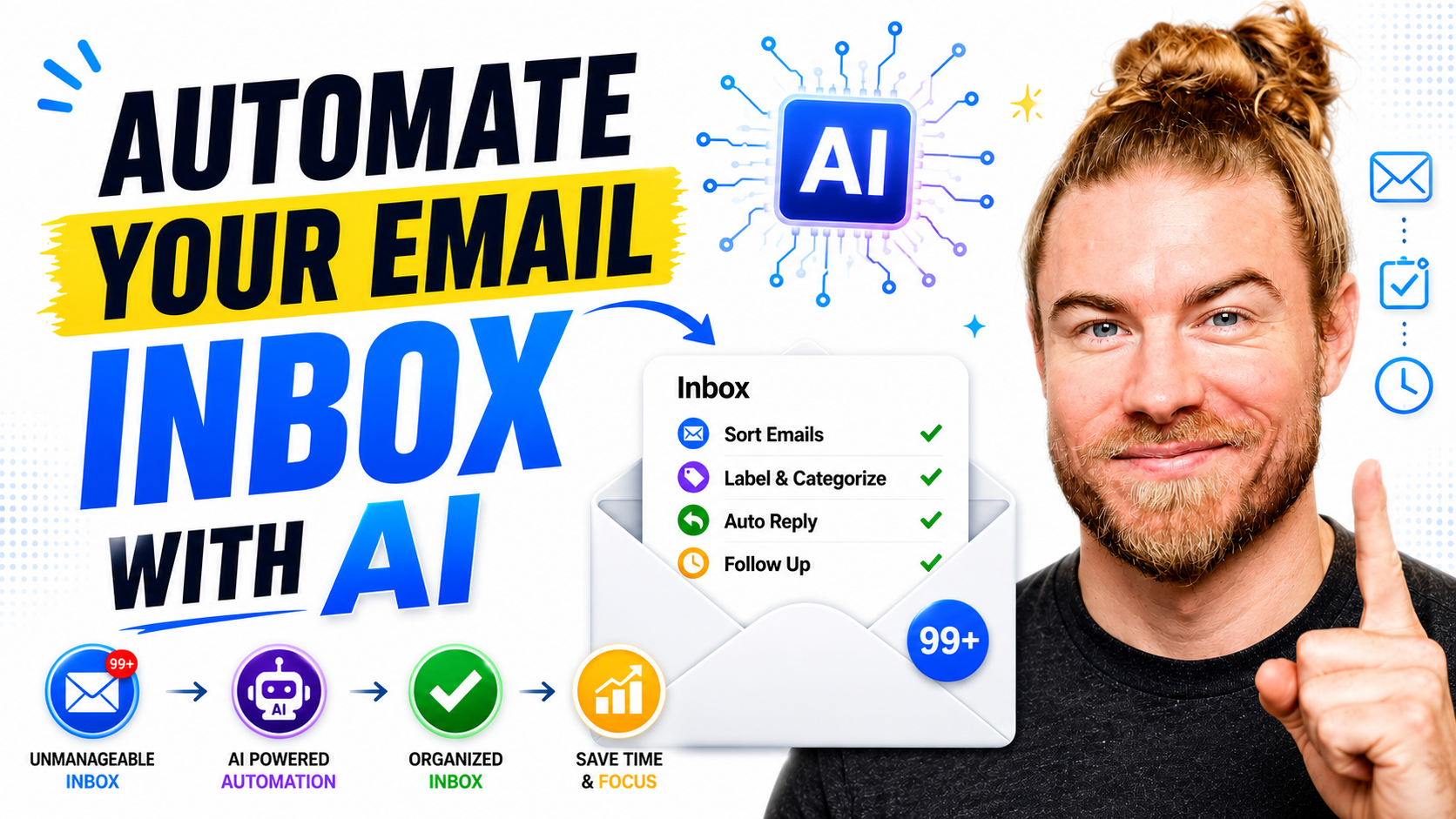
AI email automation connects your inbox to an AI assistant that reviews your email on a set schedule, flags what you missed and what needs a follow-up, and drafts the replies in your own voice for you to approve. Setup involves connecting a Gmail or Outlook account, granting read and send permissions, and giving the assistant a daily instruction. Each morning you receive an executive summary of anything important, with draft responses ready to review and send.
What Is AI Email Automation?
AI email automation is the use of an AI assistant connected to your inbox to review incoming email, surface what matters, and draft responses without manual triage. It sits within the productivity and sales enablement category, alongside AI email tools like Superhuman and Shortwave, and the native AI features built into Gmail and Outlook. The connection to Dubb is direct: Dubb Email Automation connects your Gmail or Outlook inbox to its AI, then runs a daily review that flags missed emails and follow-ups and drafts replies in your voice, delivered to your inbox on a schedule you choose.
Why an Automated Inbox Beats Manual Triage
Anyone in sales, business development, or running their own business has missed an important email at some point, or forgotten to follow up on a real opportunity. The cost of that is rarely a dramatic failure. It is the slow leak of deals that quietly went cold because a reply never went out. AI email automation exists to close that leak by making sure the important items surface on their own, every day, at very low cost.
The premise is simple: instead of scanning your inbox and hoping nothing slipped through, you let an assistant do the first pass. It reads what came in, tells you what you missed, identifies what needs a follow-up, and drafts the responses so the only thing left is your judgment. The work that used to depend on memory and free time now happens on a schedule.
Step-by-Step: Setting It Up in Under 60 Seconds
The whole setup is three steps and takes less than a minute. You connect an inbox once, grant permissions once, and give the assistant a standing instruction.
Step 1: Open Dubb’s AI
Head to Dubb and sign in, or create an account if you do not have one yet. This is where the automation lives.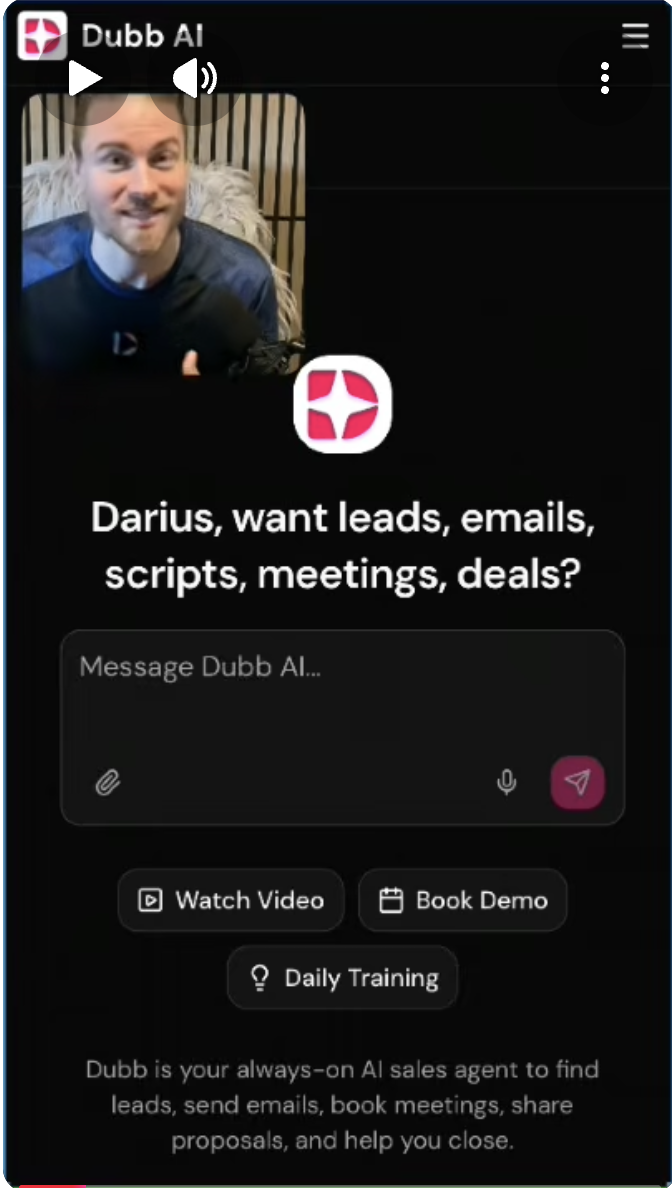
Step 2: Connect Your Inbox Under Integrations
Open the menu, go to Connections and Integrations, and search for your email address. Gmail and Outlook connect instantly. If you use a different email provider, the team can set up a special connection for you. During this step you will be asked to approve a few permission scopes, which is what lets the assistant do its job.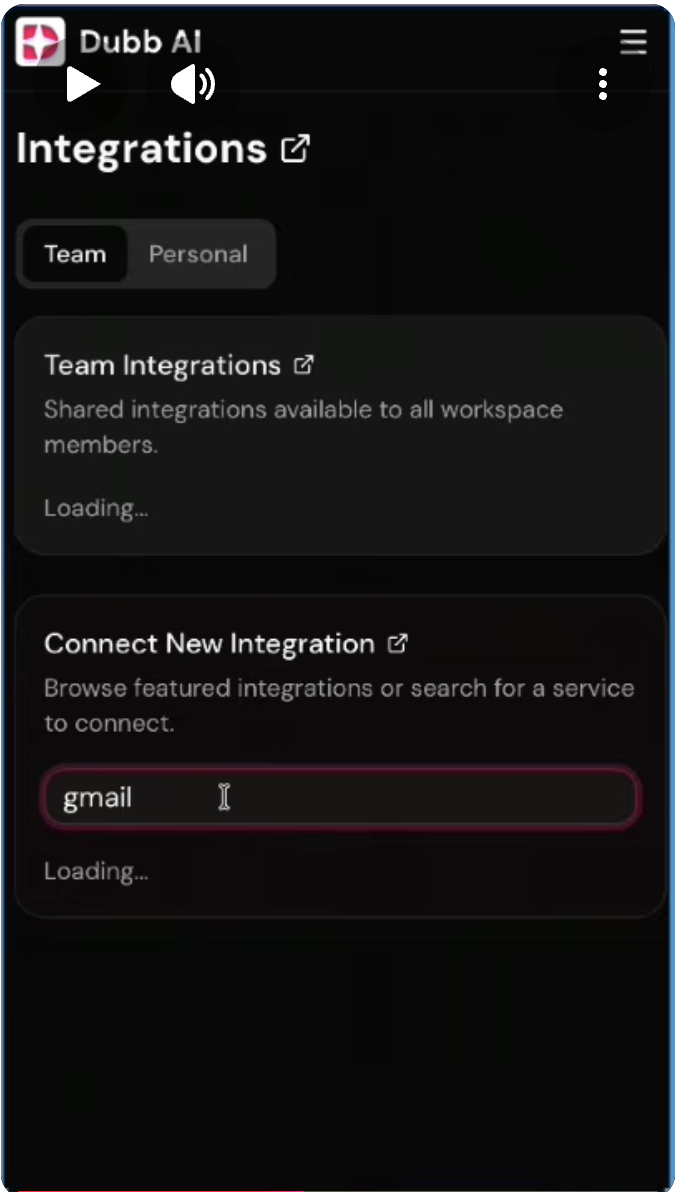
Step 3: Add the Daily Review Prompt
This is the step that makes the automation work. You give the assistant a standing instruction to review your inbox once a day, surface what you missed and what needs following up, and draft the replies. You can type it, write it with your voice, or paste a ready-made version. Then you set the time it runs, for example once a day at 8 a.m. That is the entire setup.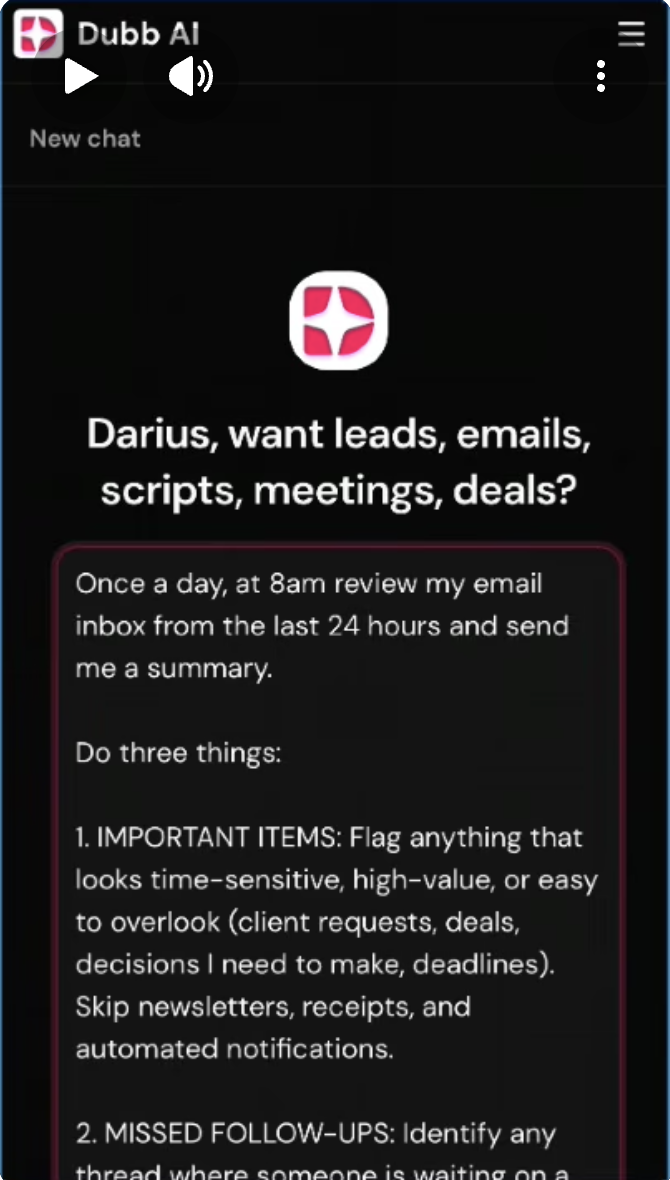
The Daily Review Prompt Explained
The instruction that drives everything is short and plain-language. A representative version looks like this:
“Once a day, review my email from the last 24 hours. Flag anything important I missed and anything that needs a follow-up, then draft the replies in my voice.”
Run on a schedule, that prompt produces an executive summary of everything important in your inbox, delivered first thing each morning. If something slipped through yesterday, it is front and center today. The replies are already drafted in your voice, so your job shrinks to three actions: review, approve, and send.
A rule I use is to let the AI handle the reading and the first draft, but never the send. The assistant surfaces and drafts; the human approves. That split keeps the speed of automation without handing over final judgment on what actually goes out.
AI Email Assistant Tools Compared
Several credible tools bring AI into the inbox. They differ in whether the AI is a client you live in, a feature inside your existing mail app, or an automation connected to your inbox that runs on a schedule. The comparison below is based on publicly available positioning. Confirm current features on each provider’s site, since they change often.
| Tool | Best Fit | Inbox Connection | Scheduled Daily Review + Drafts in Your Voice | Focus |
|---|---|---|---|---|
| Dubb | Sales and business owners who want a daily briefing with drafted replies | Gmail and Outlook (others on request) | ✓ Scheduled review, drafts in your voice | Sales follow-up and outreach automation |
| Superhuman | People who want a fast email client with AI assistance | Gmail and Outlook | AI drafting and summaries in-app | Speed-focused email client |
| Shortwave | Users who want an AI-native inbox and assistant | Gmail (Outlook varies) | AI assistant, summaries, tasks | Productivity and organization |
| Gmail / Outlook native AI | People who want AI built into their current mail app | Built in | In-app drafting and summaries | General productivity |
Notes on the comparison: Superhuman and Shortwave bring strong AI into the inbox as email clients you work inside, and Gmail and Outlook increasingly offer drafting and summaries natively. The distinction in this workflow is the scheduled daily briefing: an automation connected to your inbox that runs on its own each morning, surfaces what you missed, and drafts replies in your voice as part of a broader follow-up and outreach system. Choose based on whether you want a better client to live in or a hands-off daily review that lands on its own.
Permissions: What to Approve and Why
When you connect your inbox, the assistant asks for a few permission scopes, and each one maps to a task it needs to perform. It will ask to read your emails, which is how it reviews the last 24 hours and finds what you missed. It will ask to send emails on your behalf, which is how the drafted replies go out once you approve them. Approve all of the requested permissions. If you deny them, the tool will not have what it needs to review or draft, and the automation simply will not run.
Common Mistakes to Avoid
Denying the permission scopes. Read and send access are what make the review and the drafts possible. Deny them and the assistant cannot do its job. Letting the AI send without review. The workflow is review, approve, and send. Skipping the human approval step removes the one safeguard that keeps a bad draft from going out. Writing a vague prompt. A clear instruction, review the last 24 hours, flag misses and follow-ups, draft replies, produces a useful briefing. A vague one produces noise. Not setting a consistent run time. The value comes from the routine. Picking a fixed time each morning is what turns this from a one-off into a habit you can rely on.
Best Practices for AI Email Automation
Schedule it for the start of your day. A briefing waiting first thing means missed items get handled before the day fills up. Keep the prompt specific. Name the window (last 24 hours), the outputs (misses, follow-ups, drafts), and the voice (yours). Always keep a human in the approval loop. Let the AI read and draft, but approve and send yourself. Start with one inbox. Connect a single Gmail or Outlook account, confirm the daily summary is useful, then expand.
A practical rule of thumb: automate the reading, not the deciding. The assistant should remove the effort of finding what matters and drafting a first response, so that your attention goes only to the judgment call of what to send.
Proof: Why This Actually Works
In practice, the people who benefit most from an automated inbox are not the ones with the cleverest prompts. They are the ones who let the daily review run consistently. The reason is simple: most missed opportunities are missed to silence, not to a bad reply, and a briefing that surfaces the silence every morning is what closes that gap.
Based on anonymized usage patterns across sales and business users running daily email reviews on Dubb, observed over a rolling 12-month period, a consistent pattern shows up. Users who set a fixed daily run time and keep the drafted-reply workflow tend to follow up faster than users who check email ad hoc, because the follow-ups are surfaced and pre-drafted rather than remembered. A group of small business owners who turned on a morning review reported that the first tangible change was not more email sent, but fewer things forgotten: replies that used to slip for days went out the same morning because the draft was already sitting there waiting for approval. What I observe consistently is that the value is less about writing speed and more about recall. The system remembers so the person does not have to, and that is what protects the opportunities that would otherwise go cold.
Methodology note: Directional patterns drawn from anonymized, aggregated activity across sales and business users over a 12-month observation period. Not a controlled study. Individual outcomes vary.
Frequently Asked Questions
How do I automate my email inbox with AI?
Connect your Gmail or Outlook inbox to an AI assistant, grant it read and send permissions, and give it a standing instruction to review your email once a day, flag what you missed and what needs a follow-up, and draft the replies. Set the time it runs, and each morning you get an executive summary with drafts ready to review and send. The whole setup takes under a minute.
Can AI read and reply to my emails for me?
Yes, with your permission. Once you grant read and send access, the assistant reviews your recent email, drafts responses in your voice, and delivers them for approval. The drafts are prepared automatically, but the send stays in your hands, so nothing goes out until you review and approve it.
What permissions does an AI email assistant need?
It needs permission to read your emails so it can review what came in and find what you missed, and permission to send emails on your behalf so approved drafts can go out. Approve all the requested scopes. If you deny them, the assistant will not have what it needs and the automation will not run.
Does AI email automation work with Gmail and Outlook?
Yes. Gmail and Outlook connect instantly through the integrations menu. If you use a different email provider, a special connection can be set up by the team, so you are not limited to those two services.
Will the AI drafts sound like me?
Yes. The daily review is instructed to draft replies in your voice, so the responses that land in your morning summary read as if you wrote them. You review and adjust anything before it sends, which also helps the drafts stay consistent with how you communicate.
How do I make sure I never miss an important email?
Set the assistant to review your inbox once a day at a fixed time and surface anything important you missed in the last 24 hours, along with follow-ups. Delivered as a morning briefing, it puts the things that slipped through front and center, so they get handled before the day fills up.
Streamlining Your Inbox With AI Email Automation
The workflow solves three quiet problems at once: the important email you missed, the follow-up you forgot, and the reply you never got around to drafting. Connect your inbox, approve the permissions, and set a daily review, and all three are handled for you each morning as an executive summary with drafts in your voice, ready to review, approve, and send. Dubb Email Automation is built to run exactly this, connecting your Gmail or Outlook inbox to its AI and delivering the briefing on your schedule. If you want help turning on this or other AI automation, the links are in the bio or comments, or you can start with Dubb directly at Dubb.com.